Added: Fax Channel Onboarding

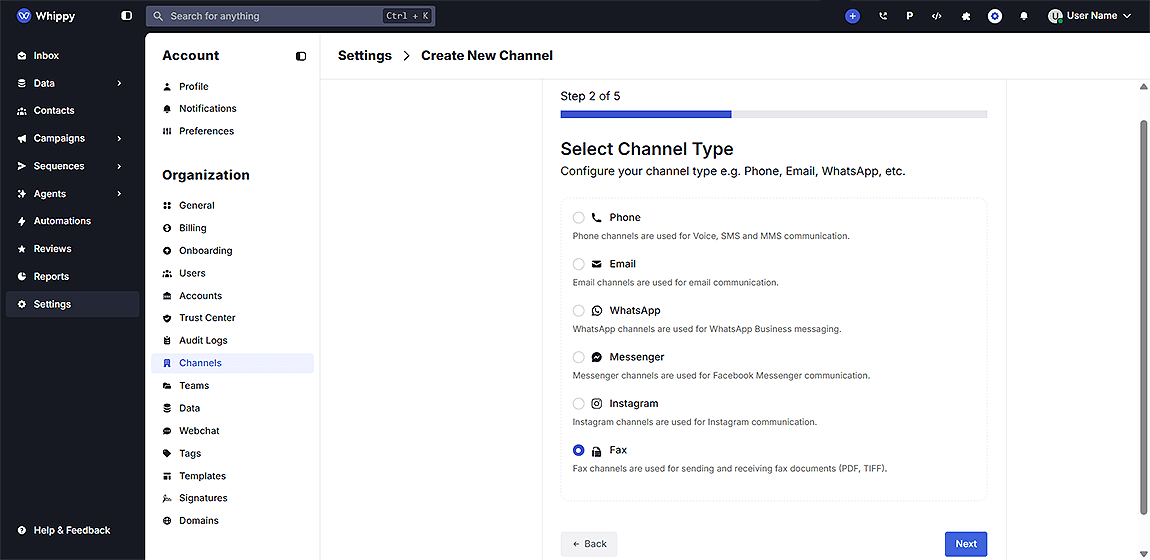
Whippy now supports fax as a dedicated communication channel: send and receive faxes directly from your Inbox, alongside SMS, voice, and email.
What's Included
- A new Fax Channel option available in the Whippy Dashboard
- Two onboarding paths: Custom and Whippy Managed
- Ability to select a local phone number during setup
- Fax sending and receiving from the Whippy Inbox immediately after onboarding
- Support for PDF and TIFF documents, including signed forms and case files
How It Works
Fax channel onboarding follows the same familiar setup flow used by other Whippy channels. During setup, you choose one of two configuration paths:
- Custom: Connect your existing Telnyx account using your API key and public key. Best for teams that already manage their own Telnyx integration.
- Whippy Managed: Whippy handles the full configuration, including purchasing a dedicated phone number and setting up the fax service. No Telnyx account or technical setup required.
Once onboarded, the fax channel is live. You can select a number in your preferred area code and start sending and receiving faxes within the same session.
Why It Matters
Fax remains a required communication method in industries like healthcare, legal, and logistics, where signed documents, case files, and compliance forms are still transmitted by fax daily.
Previously, teams in these industries had to manage fax outside of their main communication stack. Now, fax lives alongside SMS, voice, and email inside Whippy, keeping all outreach and document exchange in one place.
This is especially relevant for teams that need a dedicated local fax number, like a pharmacy receiving signed prescription forms, without adding another tool or vendor to their workflow.
Setup
- Go to your Whippy Dashboard
- Navigate to Channel Settings and select Add Channel
- Choose Fax from the available channel types
- Select your onboarding path: Custom or Whippy Managed
- If using Whippy Managed, choose your preferred area code and confirm your number
- Save and start sending faxes from your Inbox
Notes
- The Custom path requires an active Telnyx account with a valid API key and public key on hand before starting setup.
- Faxes are sent and received as PDF or TIFF files through the Whippy Inbox.
- Both onboarding paths are available to all eligible Whippy accounts. Contact Whippy support if you need help choosing the right path for your team.